
There is a big gap between Claude and your Delphi app. Autopilot closes it.
You already work hand in hand with an AI assistant: you give a prompt, Claude writes the code, Claude even compiles it. And then it stops dead. It cannot test/debug the program for you. If your program has an OK button, you have to click it. The AI can’t.
Everything past “compile” is on the far side of a wall. The AI needs you at the keyboard to push the buttons and report back.
That gap was in my way, so I built a bridge across it. Autopilot for Delphi hands the controls of your running VCL or FMX app to the AI. It can click all controls, type text into edit boxes, read the labels, set and read any property, take screenshots — the same loop a human operator runs, except the assistant does it on its own.
Add one single line of code to your project, and the wall is gone. And it does all this in the background without moving the mouse! You can proceed with your daily tasks without being disturbed by the testing session.
How to install it
1. Download the source code to a folder (example: c:\MyProjects\Autopilot For Delphi\)
2. Open your AI assistant (Claude/Gemini/etc) session and give it a prompt like this:
I have a new MCP server for you in c:\MyProjects\Autopilot For Delphi\. Install it as its README.md says.
Add this line to your global CLAUDE.md:
“To test the GUI of my Delphi programs, use Autopilot. See: c:\MyProjects\Autopilot For Delphi\AI-INSTRUCTIONS.md.”
Tell me when I must restart you.
3. Restart the AI session when it asks you to, so it can use the new MCP server.
That’s it.
How to use it
Demo app
1. Open DemoVCL\Autopilot.Demo.dproj, compile it, run it. Leave the app on screen.
2. Ask your AI assistant: “List the controls of my running Delphi app, then click btnIncrement five times and read lblCounter and confirm it shows the correct answer”
For real work
Hand it one big prompt and leave the computer running. Claude writes the code, builds it, drives the running app to check it. Come back in the morning to a GUI app that is built, fully tested, and working.
Who said it is only for testing & debugging?
Pushing the real buttons means the AI can operate your program, not just inspect it.
Examples:
- Email client. If your Delphi app is an email client, the AI can answer customers, search contacts, build templates, harvest addresses — driving your own application, the way the end user would.
- Bulk data entry. Give the AI a list of 300 customers. It fills each one into your own input form and presses Save. The records go through your Save code, not around it.
- Batch work in a program that has no command line. That old tool of yours that only has a GUI: the AI enters the file name, presses Process, waits for “Done” and moves on to the next file. All night, if needed.
- Reproduce a bug report. A customer writes “it goes wrong when I open a project and then click Export”. You paste the customer’s email into the prompt and ask the AI to reproduce the bug. The AI clicks the button and tells you whether the bug shows up, and at which step.
- Proofread your whole GUI. The AI walks every form and reads every caption and hint. It finds the typos, the buttons with no hint, and the labels nobody translated.
- Write the user manual. The AI opens each form, takes its own screenshot, reads the captions and hints, and writes the help text for it.
- Compare two versions. Run the old build and the new build side by side. The AI drives both with the same input and tells you where their answers differ.
This is full automation, not just testing. And it does all this in the background without moving the mouse!
Real-life demo
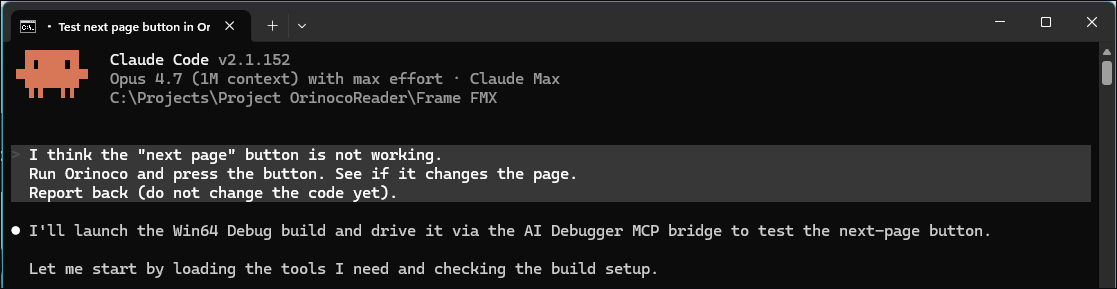
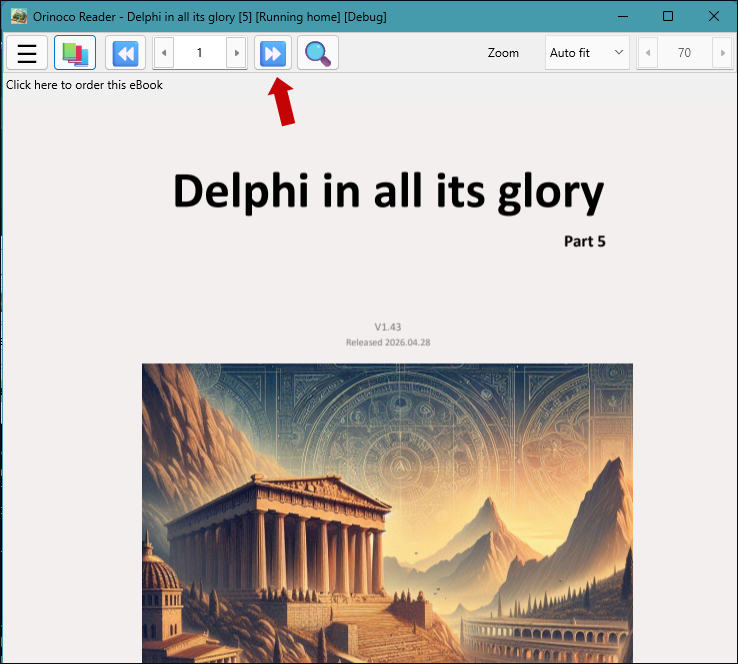
In a session I told Claude that the “Next page” button in my FMX app (Orinoco eReader) was broken — it wasn’t, but it’s a good test. Claude runs the app, finds and presses the real button, reads the page state before and after, and reports back.
btnNext).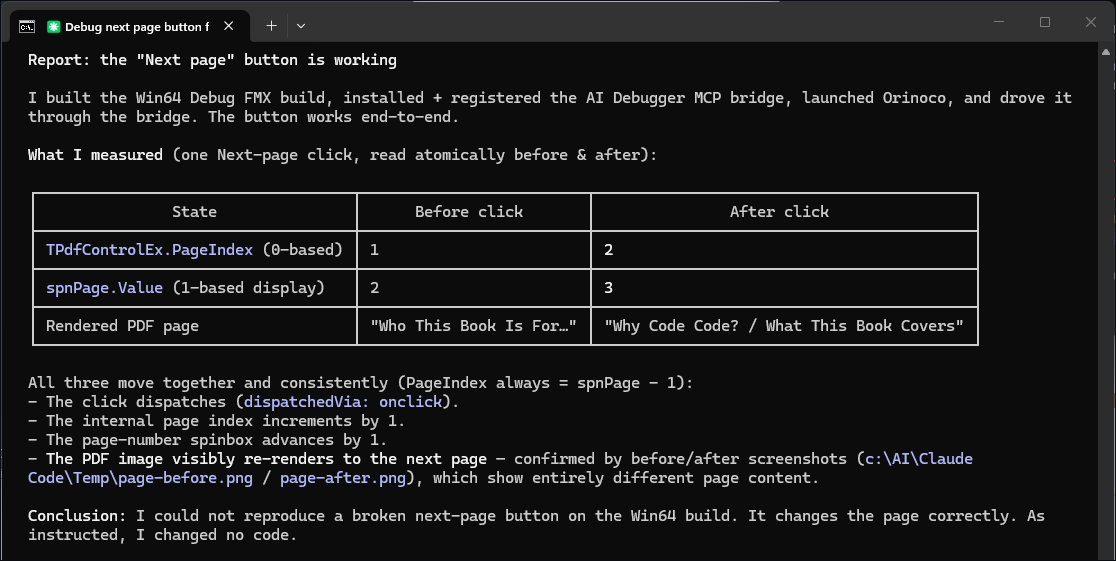
Download
Supported platforms
Officially supported Delphi versions: 11 Alexandria, 12 Athens and 13 Florence. The users reported to work also on Delphi 10.2.
Platforms: Win32, Win64, Android (FMX). Mac to be added soon.
No third-party dependencies!
Stay informed
Autopilot is still moving. Two ways to hear about the next version:
- What’s New — every new version and what it changed.
- Write to me — I am glad to hear what you built with it, or what broke.
This is a complex program. I started its development in April 2026 and I put a lot of effort and testing in it. Now it is a mature program. If it is useful to you mention it to your friends and give it a star to encourage further development.
Pricing
Free seat – for personal use
Study, research and hobby projects that you do for yourself, not for any organization. Register here for your free seat:
Paid seat – for commercial use
Companies, government, charities, schools, universities, research and health organizations.
One seat per developer, at a very honest/reasonable price. No yearly subscription bullshit. A seat is for life, per major version: it covers every update of the major version you bought (for example 3.0, 3.1, 3.2). The next major version is a new purchase.
The full terms: License.
Related topics
- How does it compare with Embarcadero Kai?
- How it works
- The tools the AI calls
- Native OS dialogs
- What it deliberately doesn’t do
- Found a bug?
- Automated GUI testing in Delphi
- What’s new in each version
Interested in Delphi and AI? See my Delphi in All Its Glory – AI assisted development book.