
There is a big chasm between Claude and your Delphi app
You already work hand in hand with an AI assistant: you give a prompt, the AI writes the code and compiles it. And then it stops dead.
It cannot test the program for you. If your program has an OK button, you have to click it. The AI can’t.
Everything past “compile” is on the far side of that chasm.
The AI needs you at the keyboard to push the buttons and report back.
Closing the gap, with… magic
But what if magic exists? What if the AI could push the buttons itself, without a single change to your forms or your business code?
Autopilot for Delphi hands the controls of your running VCL/FMX app to the AI. The AI clicks the buttons, types into the edit boxes, reads the labels, reads and changes any published property, and takes screenshots. No human at the keyboard.
And it all happens in the background: Autopilot never moves your mouse. You keep working while the AI tests your app.

DON’T TREAT IT LIGHTLY!
It is way more powerful than it seems at the first look.
How to install it
1. Download or clone the source code from GitHub to a folder (example: c:\Autopilot-for-Delphi-main\). In the prompt below, use the path of the folder that holds README.md.
2. Open your AI assistant (Claude/Gemini/etc) session and give it a prompt like this:
I have a new MCP server for you in c:\Autopilot-for-Delphi-main\. Build Source\McpServer\Autopilot.Mcp.dproj (Release, Win32), then register Source\McpServer\Win32_Release\Autopilot.Mcp.exe as the MCP server “autopilot”.
Add this line to your global CLAUDE.md:
“To test the GUI of my Delphi programs, use Autopilot. See: c:\Autopilot-for-Delphi-main\AI-INSTRUCTIONS.md.”
Tell me when I must restart you.
3. Restart the AI, so it can use the new MCP server.
That’s it. The AI builds Autopilot.Mcp.exe from the source and registers it. Check this if you want to install it manually (but why would you?).
How to use it
Demo app
1. Open DemoVCL\Push buttons\Autopilot.PushBtnsDemo.dproj (FMX: DemoFmx\Autopilot.DemoFmx.dproj) and run it.
2. Ask your AI assistant: “List the controls of the Autopilot.Demo app, then click btnIncrement five times, read lblCounter and confirm it shows the correct answer.”
Your own app
Ask the AI to wire Autopilot into your project. It adds the bridge units and one StartBridge call to your .dpr, and the AUTOPILOT define to your Debug build.
Without that define StartBridge does nothing, so your Release build has no automation in it.
For real work
Hand it one big prompt and leave the computer running. Claude writes the code, builds it, drives the running app to check it. Come back in the morning to a GUI app that is built, fully tested, and working.
Repeatable GUI tests, with no AI
Autopilot lets your DUnitX tests start the app, click, type and read the labels, then check the result with Assert.
No AI and no tokens: the tests run on every build. Sample: DemoVCL\Push buttons\UnitTesting\Autopilot.DemoTests.dproj. See:Automated GUI testing in Delphi.
Who said it is only for testing & debugging?
Pushing the real buttons means the AI can operate your program, not just inspect it.
Examples:
- Email client. If your Delphi app is an email client, the AI can answer customers, search contacts, build templates, harvest addresses – driving your own application, the way the end user would.
- Bulk data entry. Give the AI a list of 300 customers. It fills each one into your own input form and presses Save. The records go through your Save code, not around it.
- Batch work in a program that has no command line. That old tool of yours that only has a GUI: the AI enters the file name, presses Process, waits for “Done” and moves on to the next file. All night, if needed.
- Reproduce a bug report. A customer writes “it goes wrong when I open a project and then click Export”. You paste the customer’s email into the prompt and ask the AI to reproduce the bug. The AI clicks the button and tells you whether the bug shows up, and at which step.
- Proofread your whole GUI. The AI walks every form and reads every caption and hint. It finds the typos, the buttons with no hint, and the labels nobody translated.
- Write the user manual. The AI opens each form, takes its own screenshot, reads the captions and hints, and writes the help text for it.
This is full automation, not just testing. And it does all this in the background without moving the mouse!
Real-life demo
In a session I told Claude that the “Next page” button in my FMX app (Orinoco eReader) was broken — it wasn’t, but it’s a good test.
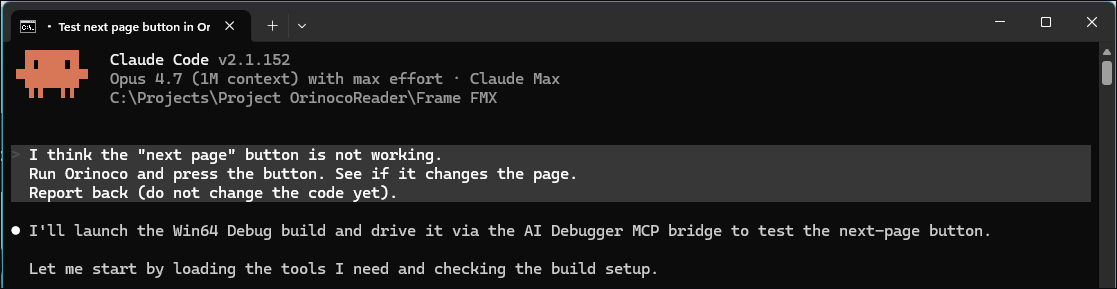
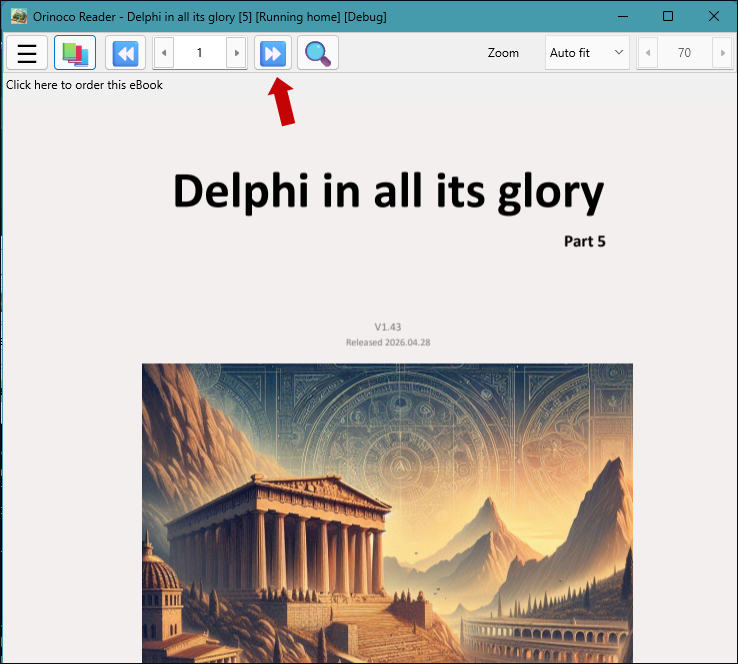
btnNext).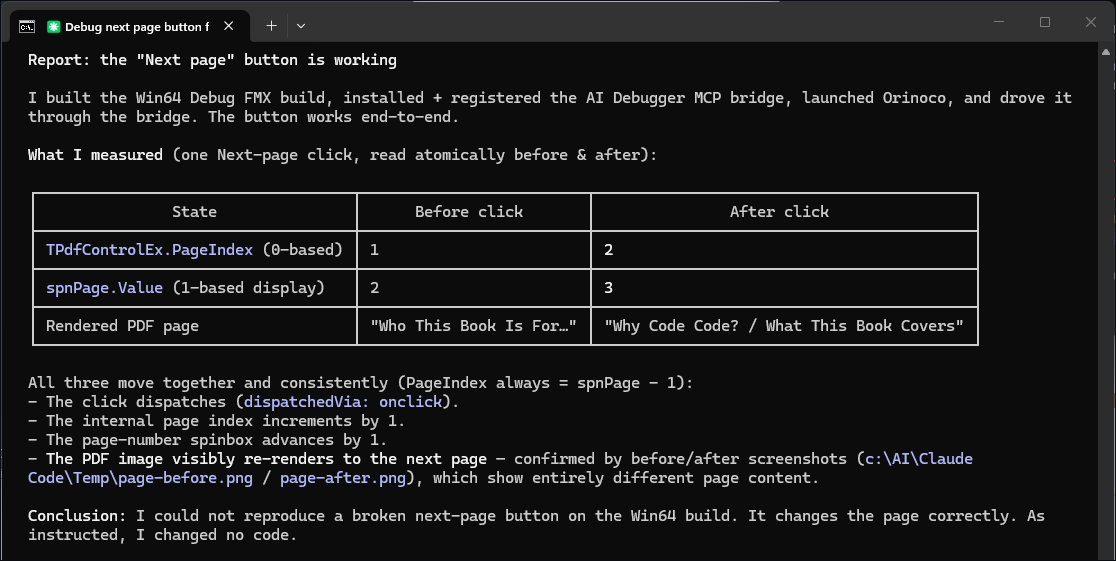
Video
Thanks Tomas F for posting this nice video.
Download
Manual installation
Prefer to do it by hand? Build Source\McpServer\Autopilot.Mcp.dproj in Delphi (Release, Win32), then register it in Claude Code with one command:
claude mcp add autopilot -- C:\Your\Path\Source\McpServer\Win32_Release\Autopilot.Mcp.exe.
Delphi Community Edition
Delphi Community Edition cannot compile from the command line. The AI asks you to build it once in Delphi, as explained above.
Supported platforms
Officially supported Delphi versions: 10.3 Rio, 11 Alexandria, 12 Athens and 13 Florence. Users report that it works on Delphi 10.2 too.
Platforms: Win32, Win64 (VCL and FMX), Android (FMX). Mac to be added soon.
No third-party dependencies (but it supports madShi).
Autopilot speaks MCP, so it can be used with Claude Code, Kai, Claude Desktop, Cursor, Cline.
Stay informed
Autopilot is getting traction – fast!
You can support the project with one single click
This is a complex program. I started its development in April 2026 and I put a lot of effort and testing in it. Now it is a mature program.
- Give it a star to encourage further development.
- Mention it to your friends
The book behind Autopilot
Autopilot lets the AI test your application.
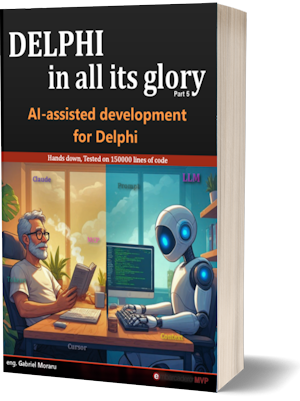
My book AI-Assisted Development for Delphi (the 5th book in the Delphi in All Its Glory series) shows how to make the AI write better Delphi code in the first place: CLAUDE.md files, skills, sub-agents, MCP servers, cost control. Autopilot has its own chapter in it.